
Translate Webchat UI
If your bot is having conversations in a language other than English, you can translate its Webchat UI to match. This includes the bot’s greeting, buttons, and any other text that appears in the Webchat window.
You will need:
- A published bot
- Knowledge of CSS
For the purposes of this guide, we’ll translate the bot’s Webchat UI to French. However, you can use the same steps to translate your bot’s Webchat UI into any language.
Visual learner? Check out our YouTube guide on translating your bot.
Step 1: Translate elements from Webchat settings
You can translate some elements of the Webchat UI directly from your bot’s Webchat settings:
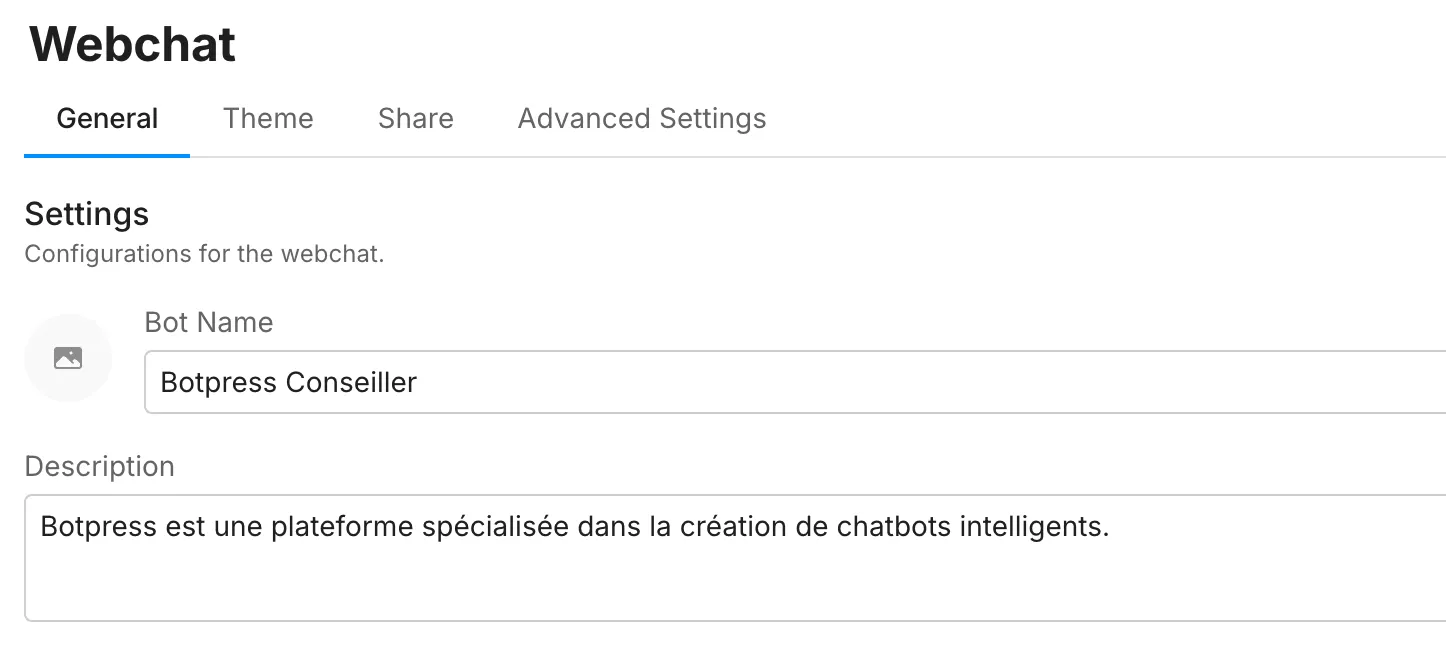
Name and description
To translate the name and description of your bot, modify the Bot Name and Description fields:
Composer placeholder
To translate the placeholder text in the Composer, modify the Composer placeholder field:

Step 2: Translate elements with CSS
Other elements of the Webchat UI need to be translated using CSS. To modify Webchat’s built-in CSS classes:
- Open your bot’s Webchat settings.
- Go to Bot Appearance, then scroll to the Styles section.
- Copy and paste the CSS snippets below into the Styles section, then modify the highlighted lines as needed.
For a full list of Webchat CSS classes, check out our guide on styling Webchat.
New conversation modal
You can translate the modal that appears when a user restarts a conversation:
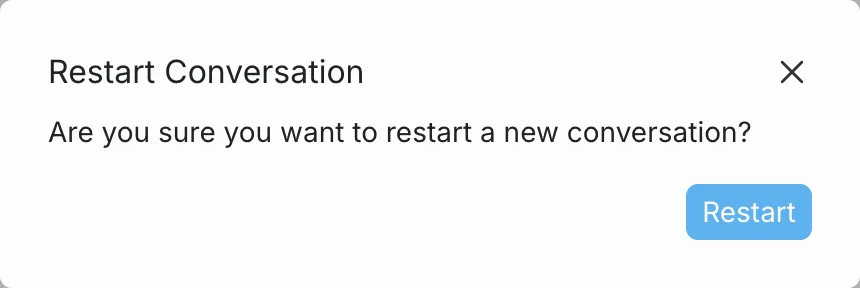
Just copy and paste the following CSS to the Styles section of your bot’s Webchat settings, then modify the highlighted lines as needed:
/* Change the modal's title */
.bpModalTitle {
  visibility: hidden;
  position: relative;
}
.bpModalTitle:after {
  visibility: visible;
  position: absolute;
  content: 'Créer une nouvelle conversation'; /* Replace this with your own translation*/
}

/* Change "New Conversation" */
.bpModalButtonConfirm {
  position: relative;
  color: transparent;
}
.bpModalButtonConfirm:after {
  position: absolute;
  top: 50%;
  left: 50%;
  transform: translate(-50%, -50%);
  color: var(--message-text);
  white-space: nowrap;
  content: 'Nouvelle conversation'; /* Replace this with your own translation*/
}

.bpModalButtonCancel {
  visibility: hidden;
  position: relative;
}

.bpModalButtonCancel:after {
  visibility: visible;
  position: absolute;
  top: 50%;
  left: 50%;
  transform: translate(-50%, -50%);
  content: 'Annuler'; /* Replace this with your own translation*/
}
“Today” label
You can translate the “Today” label that appears in a Webchat conversation:
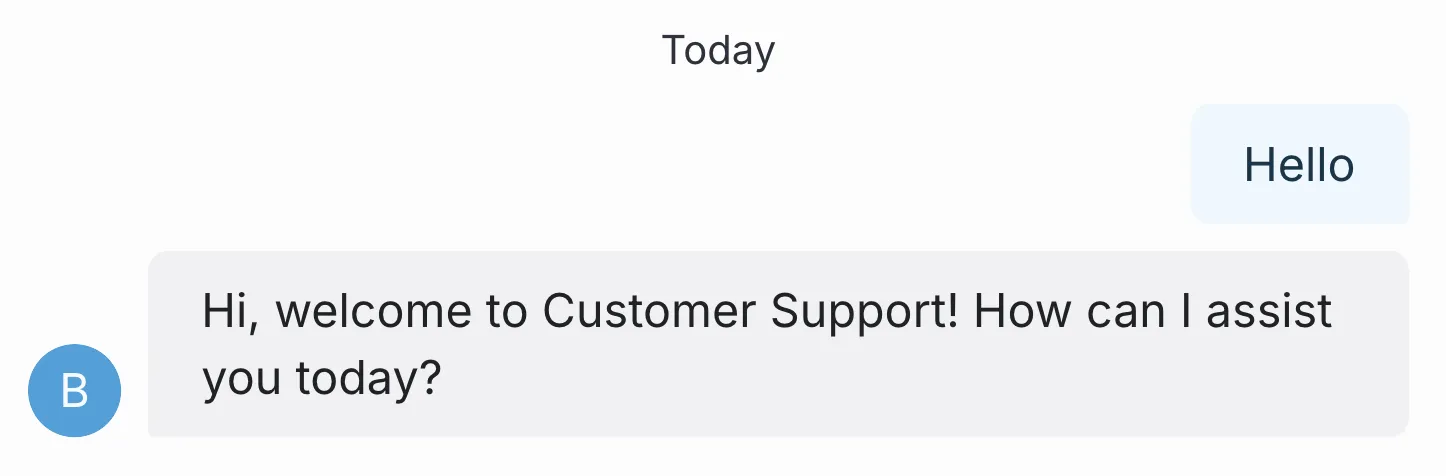
Just copy and paste the following CSS to the Styles section of your bot’s Webchat settings, then modify the highlighted lines as needed:
/* Change the "Today" label text */
div.bpMessageContainer[data-direction='system'] > p.bpMessageBlocksTextText {
  visibility: hidden !important;
  position: relative !important;
}

div.bpMessageContainer[data-direction='system'] > p.bpMessageBlocksTextText::before {
  content: "Aujourd'hui" !important; /* Replace this with your own translation*/
  visibility: visible !important;
  position: absolute !important;
  top: 0;
  left: 0;
  white-space: nowrap;
}Delivery status
You can change the “Delivered” label that appears after a user message is received:


Just copy and paste the following CSS to the Styles section of your bot’s Webchat settings, then modify the highlighted lines as needed:
.bpReset .bpMessageDeliveryStatus::after {
  content: 'Envoyé'; /* Replace this with your own translation*/
}